

I kept doing the same dumb thing. Someone in London would suggest a call “after lunch,” someone in LA would say “end of day,” and I’d sit there doing timezone arithmetic in my head, usually wrong. The macOS menu bar clock shows me exactly one time: mine. I wanted a glance, not a calculation.
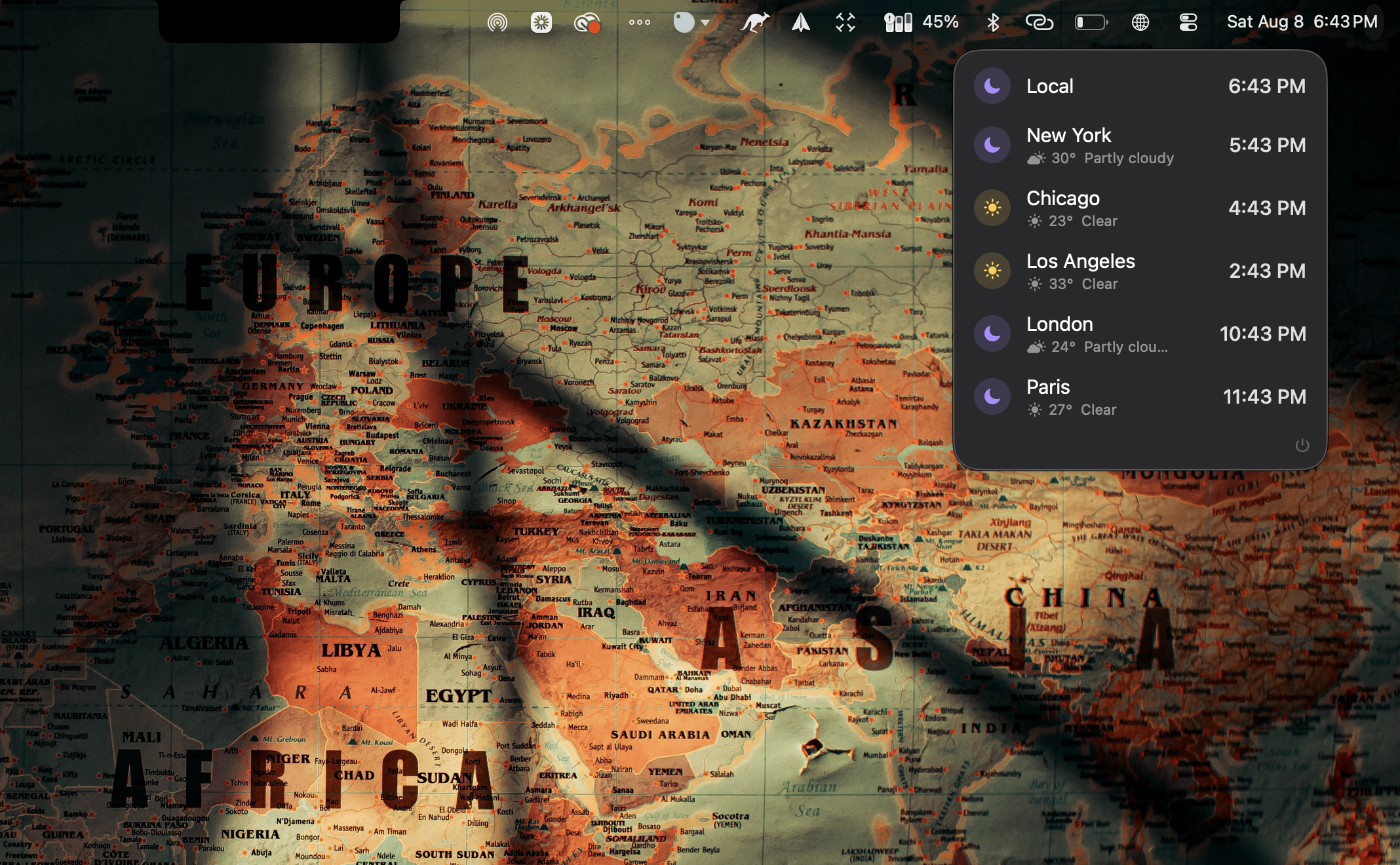
So I built World Times, a little app that lives in your menu bar. Click the globe and a clean panel drops down with the current time in every city I care about, plus a nice touch: each city shows a sun when it’s inside its working day and a moon when it isn’t. Now I can tell at a glance who’s awake and who’s asleep, without counting on my fingers.
The problem it solves
If you work with people in other time zones, you already know the tax: every scheduling conversation carries a little mental math, and every so often you get it wrong and ping someone at 3am. Menu bar clocks that show multiple time zones exist, but most either bury the info behind menus, look out of place, or try to be a full-blown world-clock suite when all I wanted was a quick glance.
World Times is deliberately small. One glance, all your cities: click the globe, read the times, done. Day and night at a glance: a yellow sun means that city is in its 9-to-5, a purple moon means it’s outside working hours, so you instantly know if it’s a reasonable time to message someone. Live weather per city: under each city it shows the current temperature and conditions. And it stays out of the way. No Dock icon, no window, no notifications. It’s just there when you want it.
How it was built
Here’s the fun part: it’s a single Swift file. No Xcode project, no storyboard, no package manifest. One .swift file and a small build script.
Under the hood it’s plain AppKit for the menu bar piece, an NSStatusItem for the globe, and SwiftUI for the dropdown panel. A borderless NSPanel hosts a SwiftUI view, which gives full control over the dark rounded look instead of a stock system menu. The panel rebuilds its contents every time it opens and refreshes every 15 seconds while it’s up, so the times never go stale.
Weather comes from Open-Meteo, a genuinely lovely free weather API that needs no API key. When you open the panel it fetches each city’s current conditions and caches them for about ten minutes so it’s not hammering the network. Each WMO weather code gets mapped to an SF Symbol and a short label.
Because it’s one file, building it is almost comically simple. No IDE required, just a single swiftc command. A tiny build.sh wraps that up: it assembles the .app bundle, compiles the source, ad-hoc signs it so macOS is happy, and launches it. The whole thing is well under 400 lines.
Adding a city is a one-line edit near the top of the file. Time zones use the standard IANA identifiers, Europe/Berlin, Australia/Sydney and friends, and there are flags at the top of the file to switch between a 12- and 24-hour clock, Celsius and Fahrenheit, and to set what counts as working hours.
Install it
You’ll need Apple’s free command line tools. If you don’t already have them, run xcode-select --install once and click Install in the popup.
Then download and unzip the project, open Terminal and cd into the unzipped folder, and run bash build.sh. It compiles the app and launches it. Look for the globe in your menu bar. To keep it, drag World Times.app into your Applications folder. To start it at login, add it under System Settings, General, Login Items.
That’s it. Left-click the globe for the panel, right-click it to quit.
What’s next
A few things on the list: showing local weather, which needs a location permission, a UTC offset next to each city, and a way to add cities from the UI instead of editing the source. If you build something on top of it, pull requests are welcome.
If World Times saves you even one mistimed 3am message, it’s done its job.
View on GitHub